
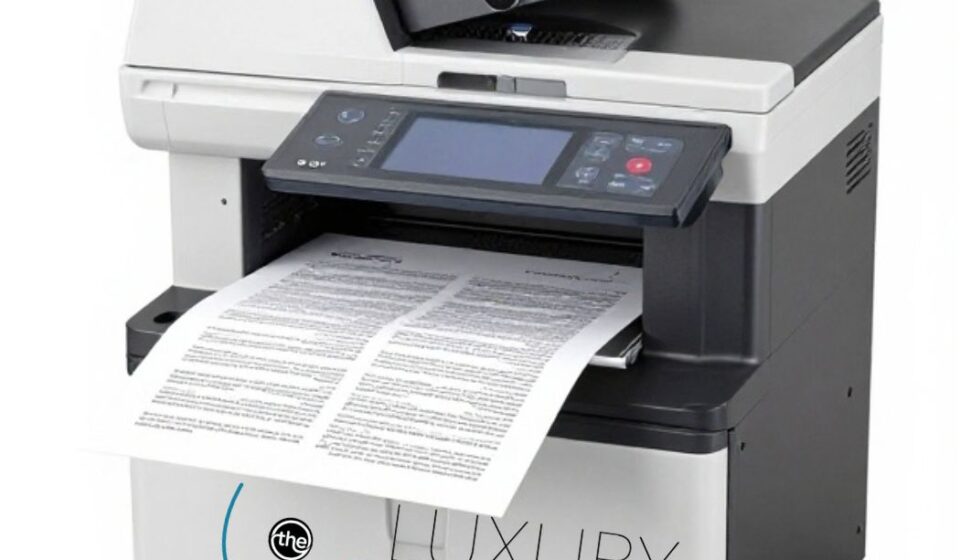
What Does Collate Mean When Printing: Picture this: You’re in the office supply room, five minutes before a meeting. You need 20 copies of a 12-page handout. You hit “Print,” grab the stack from the output tray, and start distributing—only to realize page 1 is followed by another page 1, then another page 1. You’ve just printed 20 copies of page 1 before the printer ever moved to page 2. Your meeting starts in three minutes, and you’re standing there manually sorting 240 sheets.
This scenario plays out in offices, schools, and homes every single day. The culprit? A tiny checkbox in the print dialog box called Collate. Understanding what collate means when printing can save you hours of manual sorting, reams of wasted paper, and the quiet frustration of a print job gone wrong.
In this guide, we’ll break down exactly what collate means, how it works behind the scenes, when you should use it, and when you should definitely turn it off. Whether you’re printing a simple report or managing a 500-page production run, mastering this one setting will transform your printing workflow.
What Does “Collate” Actually Mean? The Core Definition
Collate in printing means arranging multiple copies of a multi-page document so that each copy is output as a complete, page-ordered set. In other words, if you’re printing three copies of a five-page document, collated output delivers:
Copy 1: Page 1, Page 2, Page 3, Page 4, Page 5
Copy 2: Page 1, Page 2, Page 3, Page 4, Page 5
Copy 3: Page 1, Page 2, Page 3, Page 4, Page 5
Each copy arrives fully assembled and ready to staple, distribute, or bind. You don’t need to touch a single page manually.
The word itself comes from the Latin collatus, meaning “brought together.” Historically, collation referred to the process of gathering the pages or sections of a book in the correct order before binding—a meticulous task that printers and binders have performed for centuries. In early printing, collation marks (small black rules placed on the spine of printed sections) helped binders verify that quires were assembled in the right sequence. The principle remains the same today: bring pages together in the right order, whether by hand or by machine.
The Alternative: Uncollated (Grouped) Output
When you disable collation, the printer outputs pages in a completely different pattern. It prints all copies of page 1 first, then all copies of page 2, and so on. Using the same example—three copies of a five-page document—uncollated output looks like this:
Page 1, Page 1, Page 1, Page 2, Page 2, Page 2, Page 3, Page 3, Page 3, Page 4, Page 4, Page 4, Page 5, Page 5, Page 5
This is often called “grouped” printing because identical pages are grouped together. You’d then need to manually assemble each copy by pulling one of each page from the stack.
| Feature | Collated | Uncollated (Grouped) |
|---|---|---|
| Output order (3 copies, 4 pages) | 1,2,3,4 / 1,2,3,4 / 1,2,3,4 | 1,1,1 / 2,2,2 / 3,3,3 / 4,4,4 |
| Manual sorting required | No | Yes |
| Best for | Handouts, reports, booklets | Labels, forms, mail merges |
| Printer memory demand | Higher (must buffer full document) | Lower (can stream page by page) |
How Collation Works Behind the Scenes
Understanding the mechanics of collation helps you troubleshoot issues and make smarter printing decisions. There are two fundamentally different approaches to collation in modern printing systems, and knowing which one your printer uses can explain why some jobs take longer than others.
Hardware Collation: The Sorter Bins
Traditional photocopiers and high-volume office printers often use physical sorter bins. The machine routes each printed page to a different bin based on the page number. After all pages are printed, each bin contains a complete, collated set. This mechanical approach is fast and reliable but requires physical bin space—typically 10 to 20 bins on standard office equipment.
Electronic Collation: Memory Buffering
Most modern digital printers use electronic collation, also called RAM-based collation or spooled collation. Instead of physical bins, the printer stores the entire document in memory (RAM or hard disk) and then re-renders the page sequence for each copy.
This is why collated printing demands more memory than uncollated printing. The printer must retain every page of the document until the first complete set is output before it can begin the second copy. For a 100-page document with 50 copies, that’s a substantial memory load.
Many enterprise printers include a Quick Collate feature that transmits the document to the printer once and lets the device handle the replication internally, rather than sending the file repeatedly from the computer. This dramatically speeds up large jobs and reduces network traffic.
Collation in Offset vs. Digital Printing
The collation process differs significantly between traditional offset printing and modern digital printing. In offset printing, collation is a physical bindery operation: large printed sheets are folded into signatures, and those signatures are gathered in sequence by a collating machine before binding. Digital printing eliminates the signature-gathering step—pages are printed sequentially and collated automatically by the printer’s software. This is one reason digital printing has become so dominant for short-run and personalized work.
When Should You Use Collated Printing?
Collation isn’t always the right choice. The decision depends on what you’ll do with the printed output. Here’s a practical framework:
Use Collated Printing When You Need:
-
Meeting handouts and presentation materials. Each attendee receives a complete, ready-to-read document without manual assembly.
-
Reports and proposals. Professional documents should arrive in perfect page order.
-
Booklets and manuals. Collation is essential for any bound or stapled document.
-
Training materials and workbooks. Participants need complete sets, not stacks of individual pages.
-
Any document you’ll distribute without further processing.
Use Uncollated (Grouped) Printing When You Need:
-
Labels and stickers. You want multiple copies of the same page together for easy peeling.
-
Forms and carbon copies. Grouped printing keeps identical pages together for batch processing.
-
Mail merges. When each page is personalized and goes to a different recipient, grouping by page can simplify sorting.
-
Manual assembly workflows. If you have a collating machine or team that prefers to assemble by hand, uncollated output can be more efficient.
A simple rule of thumb: If the final product is a multi-page document that someone will read sequentially, collate it. If you’re producing single-page items in bulk, uncollated output is often faster and simpler.
Practical Tips for Getting Collation Right Every Time
1. Check the Print Dialog Carefully
In most applications (Microsoft Word, Adobe Acrobat, Google Chrome), the Collate option appears near the Copies field. In Word for Windows, you’ll find it under Print > Settings > Collate. In macOS, look under Print Handling in the print dialog. The option may be labeled “Collated,” “Collate,” or “Sort” depending on the software.
2. Watch for Duplicate Settings
A common pitfall: the application and the printer driver both have collation settings, and they can conflict. If your collated print job comes out uncollated (or vice versa), check both locations. Some organizations recommend disabling collation in the application and letting the printer driver handle it, or vice versa, to avoid conflicts.
3. Consider Memory Limitations
For very large documents (200+ pages) or high copy counts, your printer may run out of memory and either cancel the job or produce uncollated output. If this happens, consider:
-
Printing in smaller batches (e.g., 10 copies at a time).
-
Using a printer with a hard disk or expanded RAM.
-
Splitting the document into sections and collating each separately.
4. Pair Collation with Duplex and Stapling
Modern printers let you combine collation with double-sided printing and automatic stapling. When using all three, the output is a professionally finished document that requires zero manual intervention. However, be aware that duplex + collate + high copy counts can strain printer memory—test with a small batch first.
5. Preview Before You Print
Most print dialogs include a preview pane. Use it to verify the page order before committing to a large print run. Some software won’t display collation correctly in preview (the preview may show grouped pages even when collation is enabled), so if in doubt, print a single test copy first.
Common Mistakes and How to Fix Them
Mistake #1: Assuming Collation Is On by Default
The default collation setting varies by printer, operating system, and application. Some systems default to collated; others default to uncollated. Never assume—always check the checkbox before printing multiple copies.
Mistake #2: Confusing Collation with Page Order
Collation controls how copies are grouped, not the sequence of pages within a single copy. If your pages are printing in reverse order (last page first), that’s a separate setting: Reverse Print Order. In Microsoft Word, check Word > Preferences > Print on Mac or File > Options > Advanced > Print on Windows.
Mistake #3: Ignoring the “Mopier Mode” Conflict
Some network printers use a feature called Mopier mode (Multiple Original Prints), which handles collation on the printer side. If the driver and the printer both try to collate, you may get incorrect copy counts or duplicated pages. The fix: either enable Mopier mode and disable application-level collation, or disable Mopier and let the application handle it.
Mistake #4: Printing Huge Collated Jobs Without Testing
A 300-page document × 50 copies = 15,000 pages. If something goes wrong on page 12,000, you’ve wasted enormous time and paper. Always print a single test copy to verify formatting, page order, and finishing before committing to a full collated run.
Mistake #5: Forgetting About the Output Tray
Collated printing works best when the output tray is empty and properly aligned. If previous print jobs are still in the tray, collated sets can intermingle, defeating the purpose. Clear the tray before starting a collated job.
Pros, Cons, and Balanced Analysis
| Collated Printing | Uncollated Printing | |
|---|---|---|
| Pros | Complete sets ready to use; no manual sorting; professional output; works with stapling/binding | Faster for single-page bulk items; lower memory demand; simpler for batch processing; better for labels/forms |
| Cons | Higher printer memory usage; slower for very large jobs; can fail on low-memory devices; unnecessary for single-page documents | Requires manual sorting for multi-page docs; not suitable for distribution-ready documents; can lead to assembly errors |
| Best For | Handouts, reports, booklets, training materials, proposals | Labels, forms, mail merges, single-page flyers, batch printing |
The balanced view: Collation is a tool, not a universal default. The best print professionals don’t blindly check the Collate box—they assess the job’s end use and choose the setting that eliminates the most downstream work. For multi-page documents destined for human readers, collation almost always wins. For single-page bulk items, uncollated output is the smarter choice.
The Future of Collation: Trends Shaping 2026 and Beyond
Collation technology is evolving alongside the broader printing industry. Several trends are reshaping how collation works and what users can expect:
AI-Powered Smart Collation
Modern print management systems are beginning to use AI to predict collation needs based on document type, copy count, and user behavior. Imagine a system that automatically enables collation when it detects a multi-page report and disables it for a batch of labels—without you touching a single setting.
Cloud and Server-Based Collation
As printing moves to cloud platforms, collation is increasingly handled server-side rather than on individual printers. This means even basic printers can produce perfectly collated output because the heavy lifting happens in the cloud. Print management platforms are integrating collation into broader workflow automation, linking it with finishing options like folding, creasing, and binding.
Sustainable Printing Pressure
With organizations under increasing pressure to reduce paper waste, collation plays a quiet but important role. A miscollated print job means wasted paper, wasted toner, and wasted time. Smarter collation defaults and better preview tools are part of the industry’s broader sustainability push.
The Creator Economy and Short-Run Collation
The rise of the creator economy—projected to double to $480 billion by 2027—is driving demand for short-run, high-quality collated printing. Independent authors, Etsy sellers, and small publishers need professional-looking booklets and zines without industrial-scale equipment. Affordable desktop collation and finishing tools are filling this gap.
Automation and Reduced Human Touchpoints
Finishing equipment manufacturers are investing heavily in automation that reduces human intervention in collation. From automated sheet feeders to inline binding systems, the goal is a “lights-out” workflow where collated, bound documents emerge without anyone touching the paper.
Frequently Asked Questions About Collate Printing
What does collate mean when printing?
Collate means the printer outputs multiple copies of a multi-page document as complete, page-ordered sets. If you print three copies of a five-page document with collation enabled, you get three separate sets, each with pages 1 through 5 in order. Without collation, you’d get all copies of page 1, then all copies of page 2, and so on.
Is collated printing better?
It depends on the job. Collated printing is better for handouts, reports, booklets, and any multi-page document you’ll distribute. Uncollated printing is better for labels, forms, and single-page bulk items.
Does collate work when printing to PDF?
No. Collation only applies to physical printing. When you “print” to a PDF file, the collation setting is ignored because there are no physical copies to arrange.
Why is my printer not collating?
Common causes include: the Collate checkbox is unchecked; the printer lacks sufficient memory for the job; there’s a conflict between application and driver settings; or Mopier mode is interfering. Try reinstalling the printer driver, checking both application and driver collation settings, and reducing the copy count or document size.
What’s the difference between collate and sort?
In printing, “collate” and “sort” are often used interchangeably. However, “sort” can sometimes refer to sorting by a specific criterion (e.g., by date or name), while “collate” specifically refers to arranging pages in their natural sequence. For practical purposes in the print dialog, they mean the same thing.
Does collate use more ink?
No. Collation affects the order in which pages are printed, not the amount of ink used. The same number of pages are printed either way. However, collated printing may use slightly more paper if a job fails midway and needs to be restarted.
Can I collate without a printer hard drive?
Yes. Most modern printers use RAM for collation. However, very large jobs (hundreds of pages, many copies) may exceed available RAM. A printer hard drive or expanded memory module can increase collation capacity.
What does “collate” mean on a photocopier?
On a photocopier, collate works the same way: it produces complete, page-ordered sets for each copy. The copier scans the original document once, stores it in memory, and then prints the full sequence for each copy. Some copiers also offer “Rotate + Collate,” which rotates every other set 90 degrees to visually separate them.
Key Takeaways: What to Remember About Collate Printing
-
Collate = complete sets. Each copy is a full, page-ordered document ready to use.
-
Uncollated = grouped pages. All copies of page 1, then all copies of page 2, and so on.
-
Use collation for multi-page documents you’ll distribute. Reports, handouts, booklets, and proposals.
-
Use uncollated for single-page bulk items. Labels, forms, and batch jobs.
-
Always check the checkbox. Collation defaults vary by device and application.
-
Watch for memory limits. Very large collated jobs may fail on low-memory printers.
-
Test before you commit. Print one copy to verify order and finishing before a full run.
-
Collation is evolving. Cloud-based and AI-driven collation is making this setting smarter and more automatic.
Sources
-
Debian/Evince Documentation – “Getting copies to print in the correct order” – Collation definition and step-by-step instructions
-
Canon Support – “Collating Copies” – Explanation of collate On/Off with page order examples
-
Microsoft Learn – “PrinterSettings.Collate Property” – Technical definition and behavior of the Collate property
-
Brother Support – “Copies” – Collate and Reverse Order settings explanation
-
Google Patents – “Operator control panel for copier with collate and non-collate modes” – Historical and technical description of collation in copiers
-
Oracle Java Documentation – “Collation Enum” – Technical specification with collated/uncollated examples
-
HP Support – “Collate: Turn it on to collect and assemble printed sheets” – Practical definition and usage guidance
-
Microsoft Q&A – Collation troubleshooting threads – Common collation problems and fixes
-
Xerox Support – “Quick Collate” – Large job collation and memory considerations
-
Ricoh Support – “Collate” – Memory requirements for collation
-
PaperCut – “What does collate mean when printing?” – Practical collation overview
-
Print Monthly – “Know When To Fold ’em, Know When To Crease” (2026) – Future trends in collation and finishing
FOR FURTHER INFORMATION, VISIT: THELUXURYLIFMAGAZINE.COM